 OpenCUI
Appearance
How to build a reservation module
This guide shows you how to build a module under the reservation CUI design. Since reservation APIs offer service interfaces that cover typical booking scenarios, we will use these APIs to create a reservation system in a specific domain, such as table reservations.
The table reservation module is intended to help users to book, view or cancel reservation for specific dates and times with a set number of guests. Its reusable nature allows builders to customize the table reservation service within their chatbots. For instance, builders can configure their own table types and capacities that fit their specific restaurant.
We will take making a reservation as an example to show you the steps to build a module. To know how the last two services are built, you can check the table reservation module to learn more information.
Before you start
- Sign up for an account and log in to OpenCUI.
- We assume that you are already familiar with the procedures on the platform. If not, we recommend that you read the Quickstart guide first.
Create module: tableReservation
To begin with, create a module and fill out the creating-project form following these settings:
- Project label: enter
tableReservation. - Template: select LibraryWithCore. We need to use types from io.opencui.core libraray, this template imported that library.
- Languages: add English(en).
- Enable service interface: turn this toggle off. We will reuse existing service, so there is no service needed to be declared in this module.
Import the service
In order to use functions declared in the reservation APIs, you need to import that service first.
- Enter the reservation module where the service is declared and import it into the
tableReservationmodule you just created.
Create local types for the service
Based on the service, you may need to create some local types which are decided by your own business logic. For example, some services provide abstract types, so business can create their own types inheriting those interfaces. On one hand, these local types inherit the features of the parent types, on the other hand, you can add other features to these types. Moreover, your business may require extra processing of the return data which needs a new type to describe its schema.
Build frame: Table
According to the description of Resource type from reservation APIs, it's an abstract type which means you can create resource, inherit this type and add features based on your own business. In this guide, it's about table reservation business, so the resource we're talking about here is table. Apart from those existing properties in the Resource type, your table resource should also have its own property like capacity, which represents how many guests this table can hold.
Schema layer: declare a frame
At this layer, you will create a "Table" frame to represent that resource, inherit Resource frame and add its own property as a slot.
Create the frame
Inside tableReservation module
Create a frame labeled as
Table.Inside the
Tableframe, inheritservices.opencui.reservation.Resource.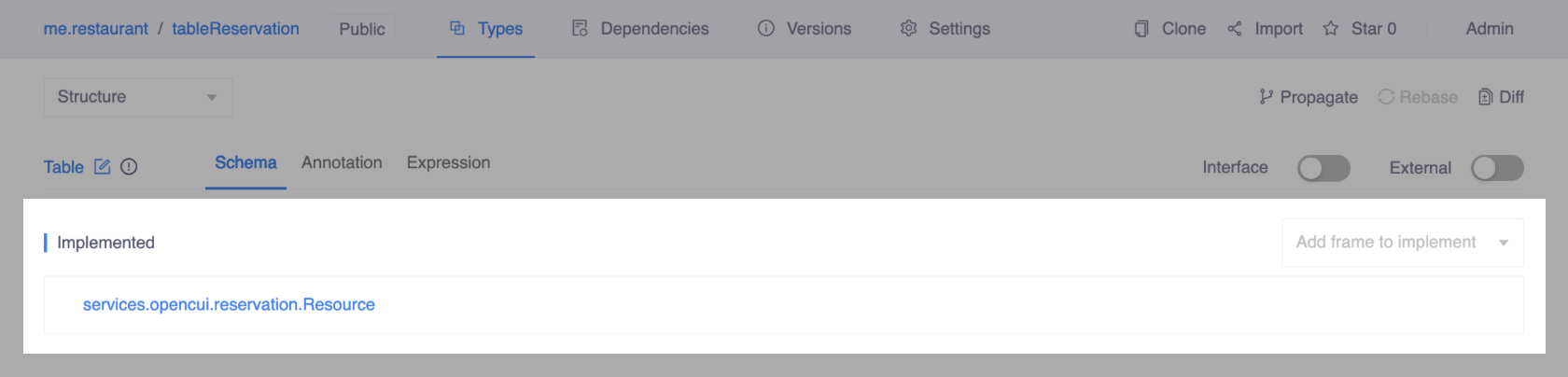
Add slots
Then add a slot called capacity with type kotlin.Int. This feature shows the maximum number of guests that the table seats.
Annotate type: Table
Since this type does not need to be exposed conversationally, there is no need to add dialog annotation.
Build CUI for the service
In OpenCUI, you can describe your service with type systems. In this section, you create a frame to describe your table resource and a skill to interact with users. After that, you use native functions to implement your business logic.
Build skill: MakeReservation
Schema layer: declare a skill
Create the skill
Create a skill called MakeReservation in this module.
Add slots
Before proceeding, ensure that the components module exists under the Dependencies tab. If it doesn't, import components module to the hours module first. After successful import, go back to hours module and refresh your webpage.
Add the following slots to this skill.
| Label | Type | Description |
|---|---|---|
| userIdentifier | UserIdentifier | The identifier of the user. Automatically filled by the runtime. |
| location | Location | The location of the restaurant. Filled by the user or the business. If it's filled by the user, you should add instances of the locations to services.opencui.reservation.LocationName. |
| resourceType | ResourceType | The type of resource. Filled by the user or the business. If it's filled by the user, you should add instances of the types to services.opencui.reservation.ResourceType. |
| duration | kotlin.Int | The duration of the reservation, in seconds. Filled by the user or the business. |
| number | kotlin.Int | The numbers of guests. Filled by the user. |
| datePicker | DatePicker | The date of the reservation. Filled by the user. |
| timePicker | TimePicker | The start time of the reservation. Filled by the user. |
In order to gain access to function interfaces, a service must be declared:
- Back to the
ShowHoursskill, in the Services section, select IHours. - Use the default label
hoursand click Save.
Define function: filterTables
In this module, we follow such a rule: the number of guests determines which capacity of the table the user books. If the number of guests is 2 and there is a table of which capacity is 2, no matter whether that table is available, the user isn't allowed to book any table of which capacity is more than 2.
Now, you need to add a native function to filter the resources by the number of guests. Besides, in order to reduce the number of function calls, you can also use a native function to make a reservation.
- To use the functions in the reservation interfaces, you need to declare the service first.
- On the MakeReservation skill page, in the Services section, select services.opencui.reservation.IReservation service.
- Use the default service label and save it.
- Add a native function that filters the input resources by the number of guests and returns a list of tables.
- Function label: filterTables
- Input parameter: services.opencui.reservation.Resource, multi-valued, not null
- Return Type: Table, multi-valued, not null
- Implementation:
kotlin// If the resourceList is empty, just return an empty list if(resourceList.isEmpty()) return emptyList() // Get a list of unique capacities in ascending order val capacityList = ( reservation.listResource(location!!, resourceType!!, null, null, 0) as List<Table>).map{it -> it.capacity!!}.distinct().sorted() // Find the minimum capacity which is not smaller than the number of people var capacity:Int ?= null for(i in capacityList){ if(i >= number!!){ capacity = i break } } // Return an empty list if there is no suitable capacity if(capacity == null) return emptyList() // Filter the tables by the capacity val filteredResource = (resourceList as List<Table>).filter{ it.capacity == capacity!! } return filteredResource
Define function: makeReservation
- Add a native function to make a reservation. If the reservation is made successlly, return
true. Otherwise, returnsfalse.- Function label: makeReservation
- Input parameter: none
- Return Type: kotlin.Boolean, not null
- Implementation:
kotlin// Get available tables val availableTables = filterTables(reservation.listResource(location!!, resourceType!!, datePicker!!.date!!, timePicker!!.time!!, duration!!)) // Make a reservation if there is an available table return if (availableTables.isNotEmpty()){ reservation.makeReservation(userIdentifier!!.userId!!, datePicker!!.date!!, timePicker!!.time!!, duration!!, availableTables.first()) != null } else{ false }
Annotate type: MakeReservation
OpenCUI provides dialog annotations to define how the chatbot interacts with users, and responses to display the result. In this section, you add dialog annotations and responses to the MakeReservation skill.
Before you start, here are some assumptions about this business:
- There is only one location for this restaurant.
- For table reservation, the type of resource should be "table".
- There is only one duration among all the resources.
Under the above assumptions, location, resource type, and duration can be given by the business.
During the slot filling process, the following dialog annotations will be used.
Initialization: when a slot is filled by the business, you can use initialization to provide a value for this slot. Here are the initial values for each slot:
- location slot: the first value in the return list from listLocation.
- resourceType slot: "table" with the right type.
- duration slot: the first duration of the first value in the return list from listResource.
Fill Strategy: for the slots filled by the business, their fill strategy should be Direct Fill. For the slots filled by the user, just follow the default fill strategy (Always Ask). Here is what fill strategy each slot should follow:
- Direct Fill: location slot, resourceType slot and duration slot.
- Always Ask: number slot, datePicker slot and timePicker slot.
Value Check: when a slot value is provided by the user, you can use value check to validate this value. In this guide, following the default recovering strategy would be fine. Here are the rules that make each slot valid:
- number slot: there is at least one table which can seat this number of people.
- datePicker slot: there is at least one table under the restrictions provided by business and the values (number and date) provided by the user.
- timePicker slot: there is at least one table under the restrictions provided by business and the values (number, date and time) provided by the user.
Confirmation: when the user has provided all the values needed, you can ask the user to confirm their choice.
Now, add the following dialog annotations to the MakeReservation skill:
Add slot level annotation to location
Interaction layer
Slot annotations: location slot
- Fill Strategy: Direct Fill
- Initialization with the following Association:
kotlin
reservation.listLocation().first()Add slot level annotation to resourceType
Interaction layer
resourceType slot
- Fill Strategy: Direct Fill
- Initialization with the following Association:
kotlin
services.opencui.reservation.ResourceType("table")Add slot level annotation to duration
Interaction layer
duration slot
- Fill Strategy: Direct Fill
- Initialization with the following Association:
kotlin
reservation.listResource(location!!, resourceType!!, null, null, 0).first()!!.durations!!.first()Add slot level annotation to number
Interaction layer
number slot
- Fill Strategy: Always Ask
- Value Check with the following Condition:
kotlin
filterTables(reservation.listResource(location!!, resourceType!!, null, null, duration!!)).isNotEmpty()Language layer
In order to support users providing values without prompt, add Names for these slots first:
- number slot: number of people
- Prompt: How many people will you need the reservation for?
- Value Check: There is no available table for
${number}people, please choose another number.
Add slot level annotation to datePicker
Interaction layer
datePicker slot
- Fill Strategy: Always Ask
- Value Check with the following Condition:
kotlin
filterTables(reservation.listResource(location!!, resourceType!!, datePicker!!.date!!, null, duration!!)).isNotEmpty()Language layer
In order to support users providing values without prompt, add Names for these slots first:
- datePicker slot: date
- Prompt: Which day will you be joining us on?
- Value Check: There is no available table for
${number}on${datePicker!!.date!!.expression()}, please choose another date.
Add slot level annotation to timePicker
Interaction layer
timePicker slot
- Fill Strategy: Always Ask
- Value Check with the following Condition:
kotlin
filterTables(reservation.listResource(location!!, resourceType!!, datePicker!!.date!!, timePicker!!.time!!, duration!!)).isNotEmpty()Language layer
In order to support users providing values without prompt, add Names for these slots first:
- timePicker slot: time
- Prompt: What time would you like the reservation for?
- Value Check: There is no available table for
${number}at${timePicker!!.time!!.expression()}on${datePicker!!.date!!.expression()}, please choose another time.
Add type level annotation
Interaction layer
Confirmation with the following Condition:
kotlin
number != null && datePicker!!.date != null && timePicker!!.time != nullLanguage layer
- Confirmation: Are you sure to book a table for
${number}at${timePicker!!.time!!.expression()}on${datePicker!!.date!!.expression()}? - Expressions
When a user wants to make a reservation, he might say "I want to book a table" or he might mention a specific date, like "book a table tomorrow". To cover the above situations, add the following expressions to the MakeReservation skill:
- I want to book a table
- I want to book a table
$datePicker$ - I want to book a table at
$timePicker$ - I want to book a table for
$number$
Attention
Do NOT copy and paste the value wrapped by $, please type the value instead.
Configure response
When a user has provided all the information needed to make a reservation, the chatbot should inform the user whether the reservation has been made successfully.
Define branch: for no available tables
Interaction layer
To do so, create a branch and add Single Value Message actions in the branch and the default response. The message in the branch is used to inform of a successful reservation, while another message is to inform of failure.
The condition of the branch should be
kotlin
makeReservation() == falseLanguage layer
For responses, add the following templates in Single Value Message: 2. Default: Sorry, the table you want to book is not available at present. You may change to another time or date, and try it again.
Default branch: for reservation success
Language layer
Branch: Your reservation has been made. We'll see you at ${timePicker!!.time!!.expression()} on ${datePicker!!.date!!.expression()}. You can check the reservation under your ID: ${userIdentifier?.userId}.
When all is done, be sure to view all the changes and merge them into the master.
:🎉: Congratulations! You've built up a reservation module.